
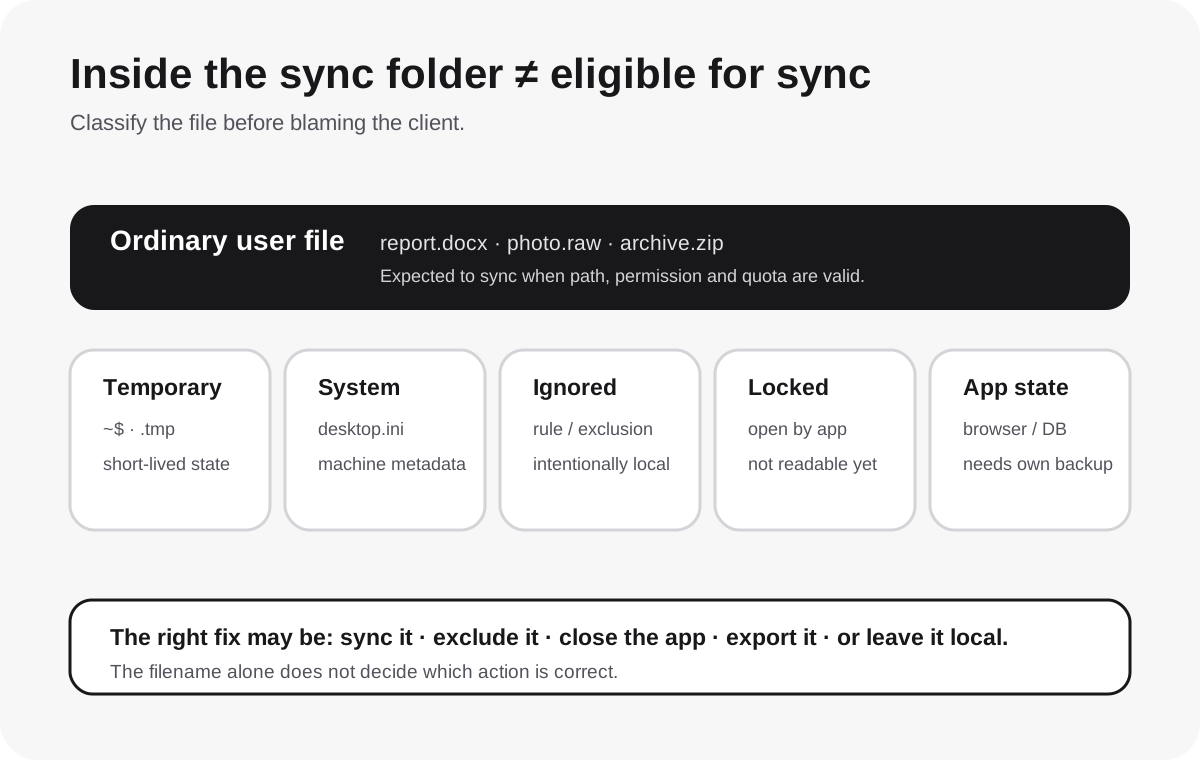
Short answer: being physically located inside a sync folder does not guarantee that a desktop client will upload the item. A file can be deliberately ignored by a provider rule, blocked because its name identifies it as temporary or system state, excluded by a user-defined ignore rule, locked by an application, unsupported by the sync topology, or simply represented as local application state that the provider does not promise to replicate.
That is why the wrong first fix is often:
“Reinstall the cloud app.”
If the file is intentionally excluded, reinstalling changes nothing. If it is a live application-state file, forcing it into sync can make the situation worse.
The first useful question is:
Is this a normal user document that failed to sync, or a file the sync engine intentionally treats differently?
“Hidden”, “temporary”, “system” and “ignored” are four different concepts
These labels are often collapsed into one bucket, but they describe different mechanisms.
| Category | Example | Who assigns the status? | What it can mean for sync |
|---|---|---|---|
| Hidden file | .DS_Store, dotfile, hidden attribute | OS / app / user | May sync, may not sync, depending on provider and exact item |
| Temporary file | ~$report.docx, .tmp | Application | Often deliberately excluded because it is transient working state |
| System file | desktop.ini, .DS_Store | Operating system | Often excluded because it describes local machine behavior, not portable content |
| Ignored file | file matched by Dropbox ignore rule or pCloud exclusion | User/provider configuration | Intentionally stays local or outside that transfer job |
| Locked / active state | browser database, email cache, live app file | Application | Sync client may be unable to read a consistent version |
The critical point is that hidden by itself is not a universal cloud-storage rule.
Apple's File Provider framework, for example, explicitly has a hidden filesystem flag for items. That proves a file-provider architecture can represent a hidden item; the hidden flag itself does not mean “must never sync.” By contrast, Microsoft explicitly names particular local-system files and temporary patterns that OneDrive does not normally sync.
Do not diagnose from the Finder or File Explorer appearance alone.
OneDrive has some of the clearest hard exclusions
Microsoft's current OneDrive and SharePoint restrictions page is unusually explicit.
It says these names are not allowed for normal sync in the relevant OneDrive contexts:
.lock;desktop.ini;- filenames beginning with
~$; - several Windows-reserved names such as
CON,PRN,AUX,NUL,COM0–COM9andLPT0–LPT9.
Microsoft separately says temporary TMP files do not sync.
It also explains that local-computer housekeeping files such as:
desktop.inion Windows;.DS_Storeon macOS
normally do not sync. If some of these local system files are introduced into OneDrive through a migration, Microsoft says the sync app can remove the cloud copy while leaving the local copy.
That last behavior is important because it can look like a mysterious deletion loop when the real cause is a documented local-system exclusion.
OneDrive's “Sync pending” troubleshooting page gives another practical clue: a folder can show pending status because the problematic item is hidden, and TMP files can remain pending until they are renamed, moved out, manually uploaded where appropriate, or released by the application using them.
So when OneDrive looks healthy except for one folder, reveal hidden items and inspect the exact filename before resetting the entire client.
Why Office temporary files often start with ~$
Applications such as Word and PowerPoint create temporary owner/lock files while a document is open. Those files are not the real document.
For example:
Quarterly-Report.docx
may coexist temporarily with something resembling:
~$Quarterly-Report.docx
The second file helps the application track editing state. It can appear and disappear rapidly as the document opens and closes.
Trying to force that transient artifact into cloud storage is usually not useful. The important object is the actual saved document.
This is also why a directory-level comparison can produce false alarms:
- source folder: 10,004 filesystem entries;
- cloud folder: 10,000 entries;
- user assumes four files are missing;
- the four “missing” items are machine-specific or temporary state that was never intended to become portable cloud content.
A migration audit should classify excluded files rather than treating every entry-count difference as silent data loss.
Dropbox has both built-in exclusions and user-controlled ignore rules
Dropbox currently documents several file categories it cannot or does not normally sync.
Its troubleshooting guidance lists examples including:
desktop.ini;thumbs.db;.DS_Store;Icon\r;- Dropbox's own internal metadata files;
- temporary files created by applications, often beginning with
~$or.~.
Dropbox also documents more complicated categories such as some symbolic links, shortcuts, junction points, resource forks, networked folders and extended attributes. Those are not all the same failure mode, which is why CloudScope treats topology and metadata problems separately rather than calling everything an “unsupported file type.”
There is a second mechanism that matters in 2026: Dropbox Ignore Rules.
Dropbox now documents a rules.dropboxignore file that can match files or folders that should stay out of Dropbox. Matching new files:
- do not upload to dropbox.com;
- do not sync to other devices;
- remain on the local computer;
- do not count toward Dropbox storage quota.
That creates an important troubleshooting branch:
The file may not be failing. It may be obeying an ignore rule exactly as configured.
If a directory was inherited from another developer or workstation, inspect the ignore configuration before assuming Dropbox is broken.
Ignored is not the same as online-only
Dropbox makes this distinction explicit.
An ignored file remains local and is not stored on Dropbox.
An online-only file is the opposite: the authoritative file is stored in Dropbox while the local filesystem can contain a lightweight representation instead of the full bytes.
Confusing those two states can lead to dangerous cleanup decisions.
If your actual problem is local disk pressure rather than exclusions, treat that as a storage-state problem instead of deleting files you think are “cache.” The site's pCloud Drive Cache Explained article shows the broader distinction between a cloud-first virtual file and a normal local file.
Google Drive needs a more conservative answer
Google Drive for desktop clearly documents its broad Stream and Mirror models, local cache behavior, sync status, supported filesystem requirements and error reporting.
What CloudScope did not find in Google's current public consumer documentation is a single authoritative table equivalent to OneDrive's explicit list saying:
“These exact hidden/system/temp filename patterns are universally skipped by Drive for desktop.”
That absence matters.
We therefore will not publish an invented Google exclusion table copied from old Backup and Sync forum posts or community answers.
Current official Google documentation does establish several useful facts:
- Drive for desktop has a detailed sync activity/error interface;
- streamed files use a managed local content cache;
- offline changes can live in that cache until uploaded;
- Stream and Mirror have different local-storage behavior;
- Drive can sync selected local folders to the account.
So for Google Drive, the safe workflow is evidence-driven:
- inspect the current sync-status/error entry for the exact item;
- determine whether the item is a normal file, live app state, a placeholder, or local cache artifact;
- verify whether the file exists on drive.google.com;
- do not infer “Google ignores all hidden files” merely because the filename begins with a dot.
This is an example where not knowing a universal rule is better than manufacturing one.
pCloud explicitly recommends excluding hidden/system and high-churn app state
pCloud's current help documentation takes a different approach.
Its “Files Not Recommended for Sync, Back up, or Upload” page says certain files can cause problems when they are actively used or continuously modified. It specifically lists:
.pstand.ostemail data files;.gitdirectories;- hidden or system files;
- browser data;
- email-client data.
pCloud explains the reason in terms of change frequency and conflicts, not merely filename aesthetics. Constantly changing application state can generate conflicted copies such as:
filename.conflicted
pCloud therefore recommends excluding these items before starting Sync, Backup or Upload.
This is a useful architectural clue:
The best thing to exclude is often not “every hidden file”, but state that is machine-specific, high-churn, locked or unsafe to reproduce as ordinary file-level sync.
That is a stronger rule than blindly ignoring everything beginning with a dot. A normal project may contain intentional dotfiles that matter. A browser cache may contain thousands of machine-specific files that do not belong in a portable document archive.
pCloud's exclusion controls can apply across Sync, Backup and Upload when configured before the job starts. That gives users a deliberate way to define transfer scope rather than discovering thousands of conflict files after the fact.
Fix the data boundary before you compare storage plans.
pCloud exposes explicit exclusions and separates Drive, Sync and Backup roles, which can make it easier to keep an archive away from high-churn application state. That does not mean pCloud should sync every hidden or system file; its own documentation recommends excluding several such workloads. Compare the personal plans only after you know which folders are actual user data.
Compare pCloud after defining the sync boundary → Affiliate link · Opens pCloud's current personal plan page. Verify current capacities and features before choosing.iCloud and File Provider show why “hidden” is not a universal exclusion rule
Apple's File Provider framework is useful here because it exposes the underlying semantics modern macOS cloud providers can use.
Apple documents a filesystem hidden flag for File Provider items. In other words, the framework can represent an item that is hidden from normal user view while still treating it as an item in the file-provider domain.
Apple also documents a managed temporary directory for File Provider extensions and a synchronization model in which the system can hold dataless or materialized local copies while pending changes are synchronized to remote storage.
The important inference is narrow:
- Documented fact: File Provider can represent hidden items.
- Documented fact: File Provider has its own managed temporary/local state.
- Not established by those facts: every hidden macOS file is uploaded to iCloud Drive.
- Also not established: every hidden file is excluded from iCloud Drive.
CloudScope therefore will not claim a universal iCloud rule that Apple does not publish.
For an iCloud-specific missing-file case, inspect the Finder sync status and the actual item type. If the item is application state, a package-internal artifact or a File Provider-managed temporary object, treat it differently from a user-created document.
A file can be skipped because it is locked, not because its name is special
This is another failure mode that looks identical from the outside.
A normal filename such as:
mail-archive.pst
or:
catalog.db
can fail to sync because the application has the file open or is constantly changing it.
OneDrive explicitly says a file in use by another application may not sync until the application closes it. pCloud likewise warns against locked and continuously updated application files. Dropbox's troubleshooting guidance also separates permission, file-type and application-state problems.
That means:
normal-looking-name + no cloud copyis not enough evidence for an exclusion rule.
Test whether the file becomes syncable after the application is cleanly closed. If it does, the root cause was likely active application state rather than a permanent filename exclusion.
For transactional or multi-file application state, however, “it uploads after I close the app” still does not prove ordinary sync is the correct backup design. Cloud Backup vs Cloud Storage explains why a synchronized copy is not automatically an application-consistent backup.
Do not force every dotfile into the cloud
Developers often react to missing hidden files by trying to turn off all exclusions.
That can be wrong in both directions.
Some hidden files are important:
.env.examplemay document environment-variable structure;.gitignorecan be part of a source repository;- application configuration dotfiles can be intentional portable user data.
Others are not suitable as generic cloud documents:
- browser caches;
- mail-client indexes;
- machine-specific lock files;
- OS metadata files;
- constantly changing databases;
- package internals the application itself expects to manage atomically.
So “sync all hidden files” is not a safe policy.
A better rule is:
Classify hidden data by role: user-authored state, reproducible cache, machine metadata, active application database or security-sensitive secret.
Then decide the correct storage mechanism for each class.
Security-sensitive hidden files need a separate decision
Another reason not to blindly upload every dotfile is secrecy.
Hidden configuration directories can contain:
- API keys;
- local tokens;
- SSH material;
- application session data;
- browser authentication state;
- environment secrets.
Whether those should enter a consumer cloud account is a security and key-management decision, not merely a sync troubleshooting decision.
Do not solve “this hidden file is missing from the cloud” by making credential directories broadly syncable without first checking what is inside them.
For credentials and other sensitive data, use a purpose-built secret-management or encrypted-backup design where appropriate rather than assuming that visibility is the only problem.
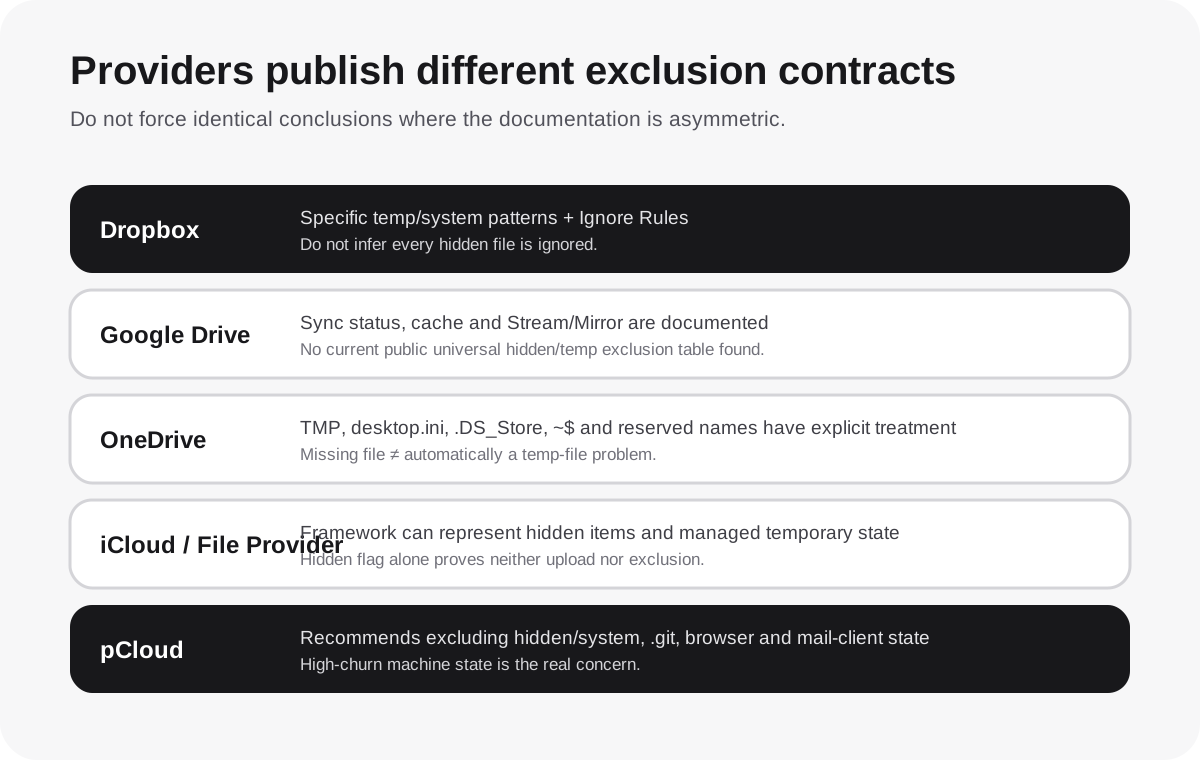
The five-provider evidence matrix
| Provider | Documented exclusion / risk evidence | What you should not infer |
|---|---|---|
| Dropbox | Specific temp/system patterns; some unsupported metadata/topologies; official ignore rules | That every hidden file is automatically ignored |
| Google Drive | Sync status/errors, Stream/Mirror, managed cache are documented | A universal hidden/temp exclusion table that current official docs do not publish |
| OneDrive | TMP not synced; desktop.ini, .DS_Store, ~$... and reserved names have explicit treatment | That every file missing from OneDrive is a temp-file problem |
| iCloud / File Provider | Framework can represent hidden items and managed temporary/local state | That hidden flag alone guarantees upload or guarantees exclusion |
| pCloud | Explicit recommendation to exclude hidden/system, .git, browser/mail data and other high-churn state | That pCloud is supposed to ingest every machine-state file if exclusions are disabled |
This table is deliberately asymmetric because the providers publish different levels of detail.
A comparison becomes less trustworthy, not more trustworthy, when every cell is forced into the same wording despite different evidence.
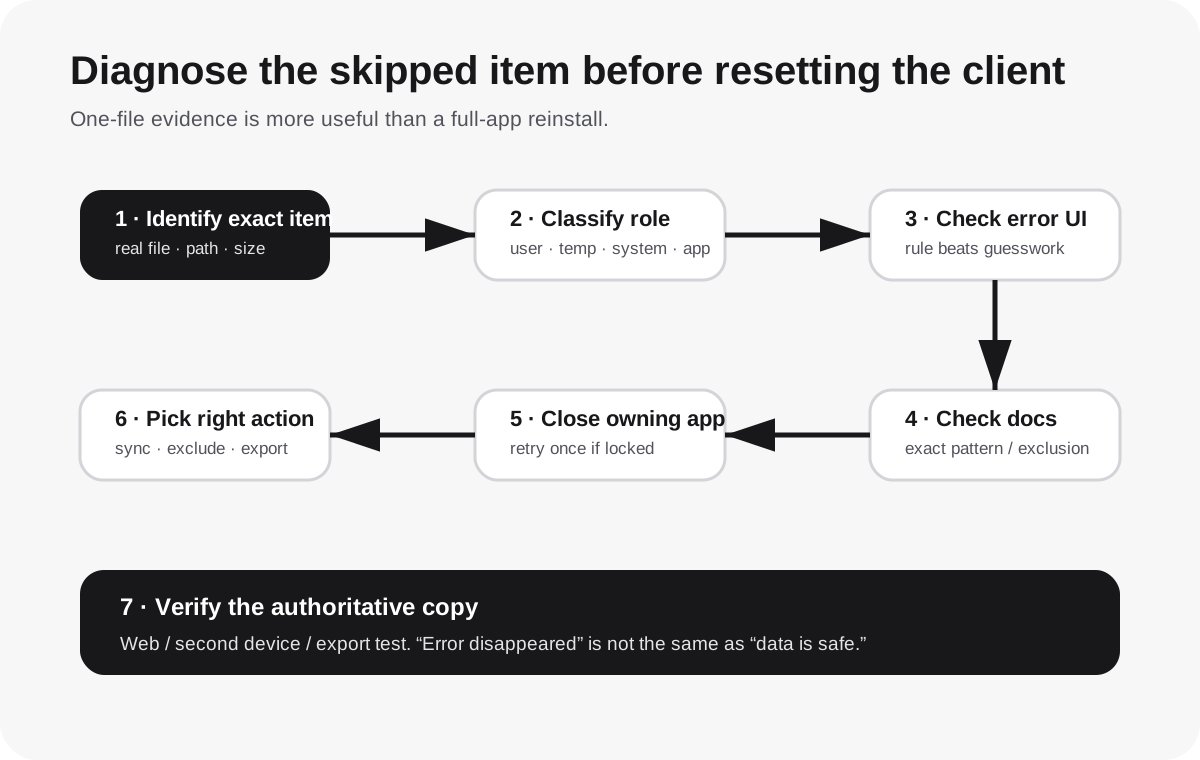
The diagnostic workflow: find the exclusion mechanism before touching the client
Use this order when one file or a small class of files refuses to appear remotely.
1. Confirm the real file exists locally
Do not diagnose a placeholder, alias, shortcut or dataless File Provider item as if it were an ordinary local binary.
Check:
- real path;
- byte size;
- whether the file opens locally;
- whether the application is still using it.
2. Reveal hidden items
On Windows or macOS, make hidden files visible temporarily so you can identify the exact filename causing the discrepancy.
3. Classify the item
Ask:
- temporary application file?
- OS metadata?
- user-authored hidden file?
- live database?
- cache?
- lock file?
- user-configured ignore/exclusion?
4. Check provider activity/error UI
A provider-specific error is stronger evidence than the fact that the item is hidden.
5. Check provider documentation for the exact pattern
For example, ~$... and desktop.ini have explicit OneDrive treatment. Dropbox documents its own ignored patterns. pCloud documents categories it recommends excluding.
6. Close the owning application and retry once
If the item is actively locked, closing the application can separate a temporary access problem from a permanent exclusion.
7. Do not rename a system file merely to trick the provider
Renaming desktop.ini to desktop.txt might make a sync engine treat it differently, but it also changes what the operating system thinks the file is. That is not a valid preservation strategy.
8. Export meaningful application data instead
For browser data, mail databases, catalogs or transactional state, use the application's supported export/backup path when available.
9. Verify the remote artifact
If the data matters, check the web interface or a second device. Do not stop at “the error icon disappeared.”
When exclusion is the correct architecture, not a workaround
A mature cloud-storage design does not try to sync every filesystem entry.
A workstation contains multiple data classes:
- authoritative user documents — should usually be protected;
- reproducible caches — usually should not consume backup/sync resources;
- machine-specific OS state — often has little portable value;
- application databases — may need application-aware backup;
- secrets — need an explicit security design;
- temporary lock files — usually should remain temporary.
That is why a carefully designed exclusion list can improve reliability rather than weaken backup coverage.
The mistake is excluding by accident and never knowing what was omitted.
The better model is:
Defined scope + documented exclusions + verification report.
For a serious backup or migration, keep a record of excluded patterns and the reason for each one. Then a file-count difference has an explanation instead of becoming a future incident.
What not to do
Avoid these common “fixes”:
- do not reinstall the sync client before checking whether the filename is intentionally excluded;
- do not remove every ignore rule merely to make item counts match;
- do not rename system files just to bypass provider restrictions;
- do not force live browser/mail/database state into ordinary two-way sync;
- do not assume every dotfile is disposable;
- do not assume every dotfile is business-critical;
- do not delete local-only hidden files until you know whether they are reproducible or authoritative;
- do not treat a lower remote file count as proof of corruption until exclusions are reconciled.
Bottom line
A file sitting inside the sync folder but missing from the cloud can be a genuine sync failure — but it can also be a completely intentional outcome.
The fastest reliable diagnosis is:
- identify the exact item;
- classify whether it is user data, temporary state, system metadata, live app data or an ignored item;
- check the provider's documented rule or current error message;
- verify whether the authoritative data exists somewhere safe;
- only then decide whether to change an exclusion or redesign the workload.
For ordinary documents, unexplained omission deserves investigation.
For transient machine state, forcing every filesystem entry into cloud sync can create more conflicts than protection.
The missing step most people skip is not a reinstall. It is defining which files were supposed to be portable in the first place.