
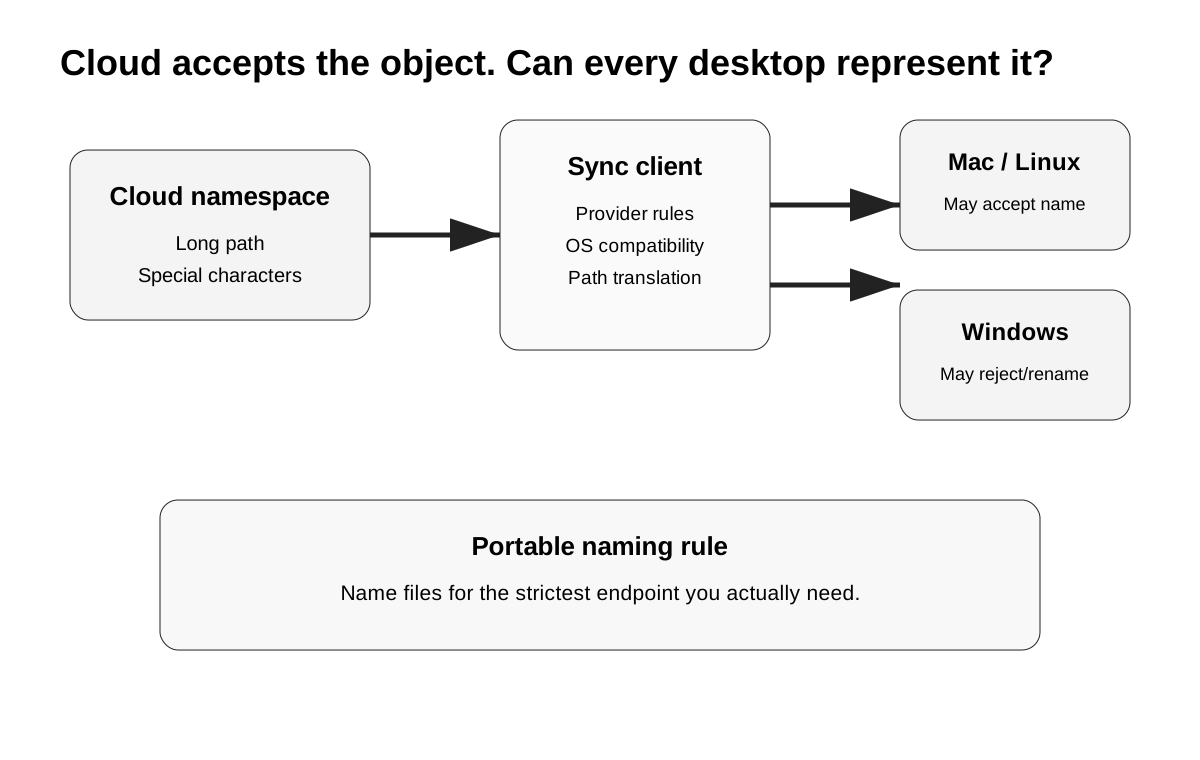
Short answer: if a file exists in the cloud or syncs on one computer but refuses to appear, open, rename, or update on another, do not assume the account is corrupt. The failure can be caused by a filename or full path that the destination operating system, application, or cloud client cannot represent cleanly.
The safest first move is not to reinstall the cloud app. Pick one affected file, record its exact name and full path, confirm that the current cloud copy exists, and then test whether a shorter, simpler name syncs successfully.
The key mental model is:
“The cloud accepts this object” does not guarantee that every local filesystem and desktop application can materialize the same object under the same name and path.
That distinction matters most in mixed Windows/macOS environments, long nested project trees, migrations from web-only storage, and archives created by software that generates names automatically.
First confirm which layer is actually failing
A naming problem can fail at several layers that look identical to the user.
| Layer | What can reject the item | Typical symptom |
|---|---|---|
| Cloud service | Provider naming or path rules | Upload or rename rejected in web/app |
| Desktop sync client | Provider + OS compatibility rules | Item appears online but not on one computer |
| Local filesystem | Windows/macOS filename/path constraints | Rename, create, or materialization fails locally |
| Desktop application | App-specific path limit | File syncs but Word/editor cannot open or save it |
| Cross-platform workflow | One side can represent a name differently from another | Duplicate-looking items, renamed items, or one-sided failures |
Do not collapse these into “sync is broken.”
A useful test is to ask:
- Does the file exist in the provider's web interface?
- Does it sync to another computer?
- Does the affected desktop client show a specific filename/path error?
- Can the same item sync if you temporarily shorten the path and use a conservative filename?
If the answer to #4 is yes, you have strong evidence that the failure is in the name/path compatibility layer, not authentication, quota, or general connectivity.
If the whole service is failing rather than one item, diagnose the client separately. Do not use a one-file naming fix as a substitute for broader sync troubleshooting.
The portable-name rule: design for the strictest environment you actually use
A mixed-device cloud library should not be named only for the machine that created it.
For maximum portability across Windows, macOS, Dropbox, OneDrive, pCloud and typical desktop applications, a conservative naming policy is still valuable:
- avoid
\ / : * ? " < > |in filenames intended to sync to Windows; - avoid names ending in spaces or periods when Windows is in the workflow;
- keep individual filenames reasonably short;
- keep folder trees shallow enough that the full path remains comfortably below application and provider limits;
- avoid relying on case-only differences such as
Report.docxandreport.docxas two distinct business objects; - test unusual Unicode/emoji names on the actual client mix before using them at scale.
The first five points are not arbitrary style preferences. Dropbox, OneDrive and pCloud all publish cross-platform restrictions or compatibility guidance that explicitly includes some or all of these characters and path concerns. Apple separately documents path-too-long failures in iCloud for Windows.
The case-only rule needs more care. It is a cross-platform safety recommendation, not a claim that all five providers prohibit case-only names in their cloud backends. Different local filesystems and applications can treat case differently. If two objects differ only by capitalization, do not assume every endpoint will preserve them as two safely distinct local files.
OneDrive: the provider limit and the local-app limit are not the same number
Microsoft's current documentation is unusually explicit about path length.
OneDrive and SharePoint cloud paths can support paths up to 400 characters in the cloud layer, while OneDrive sync has its own combined path ceiling. But Windows File Explorer and many Office desktop workflows still encounter the familiar 260-character local/application boundary.
That creates a common failure:
- A deeply nested file is created or renamed in the browser.
- The cloud accepts it.
- The OneDrive client can see the object.
- File Explorer or an Office desktop app cannot work with the resulting local path cleanly.
The file is not imaginary and the sync account is not necessarily damaged. You have crossed a boundary between the cloud namespace and the local application namespace.
Microsoft also currently lists these characters as invalid in OneDrive file/folder names:
" * : < > ? / \ |
and disallows leading/trailing spaces in file or folder names.
A safe OneDrive fix
If a specific file is failing:
- Verify the current file exists in OneDrive on the web.
- Copy the exact current path into a note before changing anything.
- Rename the deepest folder or filename from the web to shorten the path.
- Remove unsupported characters if the sync client identifies them.
- Let OneDrive rescan.
- Verify that the intended file appears locally and opens in the target application.
Do not rename ten parent folders at once. That makes it much harder to identify which boundary caused the failure and can also break links in applications or documents.
Microsoft explicitly warns that filename changes can break previously shared links in some rename scenarios, so treat a rename as an address change, not just cosmetic cleanup.
Dropbox: flexible filenames help Windows, but portability still matters
Dropbox supports a broad set of Unicode names, including emoji and CJK characters, but its own naming guide still recommends keeping full paths below 260 characters for cross-platform compatibility.
Dropbox always disallows / and \ in names. It also warns about characters such as:
< > : " | ? *
particularly because they can cause Windows compatibility problems.
Dropbox has a feature called Flexible file names on Windows. When a cloud item contains a Windows-incompatible special character, Dropbox can replace that character with an underscore in the local Windows view so the item can sync instead of disappearing entirely.
For example, a cloud-side name such as:
client:final.txt
can be represented on Windows as something like:
client_final.txt
That is useful, but it creates a new diagnostic question:
Are you looking at the exact cloud object name, or the compatibility-safe local representation of that object?
If a script, automation, media project, or database expects the original literal filename, automatic compatibility renaming can still break the workflow even though Dropbox reports itself as synced.
Do not diagnose by green checkmark alone
A fully synced Dropbox status tells you Dropbox completed its supported representation of the object. It does not guarantee every downstream application will accept the renamed local path.
For an automated workflow, compare:
- cloud-side filename;
- local filename on Windows;
- path referenced by the application;
- whether another Mac/Linux endpoint sees a different literal name.
This is exactly the sort of problem that looks like “Dropbox duplicated or renamed my file” until you inspect the compatibility layer.
iCloud Drive: a long Windows path can fail while the rest of the folder keeps syncing
Apple's June 2026 support documentation is specific about iCloud for Windows path-too-long behavior.
In iCloud for Windows 10.8 or later, an overlong file name or path can fail to sync while the rest of the files continue. Apple says the client shows the affected path so you can locate it and shorten file/folder names.
Apple's practical recommendation is to shorten names or folder depth so the relevant path is less than 256 characters.
That means a mixed Mac/Windows household can see this pattern:
- file appears normally in iCloud Drive on a Mac;
- same folder mostly appears on Windows;
- one deeply nested item is absent or reports a path error;
- everything else looks healthy.
That is not evidence that the Windows client lost the whole folder.
The important iCloud warning
Apple notes that renaming a file or folder can affect third-party applications that still point to the old path.
So do not “fix” a path-too-long problem by mass-renaming project folders while editing software, catalog software, or automation is still using them.
Use one representative branch first, confirm the application can reopen the renamed item, and only then apply a wider naming cleanup.
If your actual iCloud problem is local disk usage rather than an invalid path, solve that separately. A filename cleanup will not fix cloud-only/local-download state.
pCloud: the same Windows-invalid character set can stop Sync or Backup
pCloud's current troubleshooting documentation explicitly lists invalid or too-long file names as Sync/Backup/Upload errors.
On Windows, pCloud instructs users to remove unsupported characters such as:
\ / : * ? " < > |
and to shorten the item name or move it closer to the root of the configured Sync/Backup folder when the full path is too long.
This is useful evidence for two reasons.
First, pCloud is not exempt from operating-system filename constraints simply because pCloud Drive is a virtual drive.
Second, pCloud surfaces the affected files in its Activity/error list with the reason a Sync/Backup item failed. That makes the troubleshooting path relatively direct: identify the exact object, rename it, and retry rather than rebuilding the whole account.
Do not switch to pCloud expecting filename physics to disappear
If your archive contains Windows-invalid names, moving providers does not make Windows accept those names natively.
The pCloud advantage, where relevant, is architectural rather than magical: pCloud Drive can hold a cloud-first archive while Sync is reserved for folders that genuinely need local cross-platform materialization. That can reduce how much of a huge archive must satisfy every desktop endpoint at all times.
But any folder you actually Sync to Windows still needs to survive Windows naming and path rules.
Google Drive: diagnose the actual desktop error instead of importing another provider's blacklist
Google Drive for desktop's current public documentation focuses heavily on the desktop client, local filesystem permissions, Stream/Mirror architecture, supported filesystems and explicit sync errors.
Google does not present the same simple cross-platform forbidden-character table in the current public Drive for desktop help pages that Microsoft, Dropbox and pCloud publish.
That means CloudScope will not invent one.
The correct Google diagnostic is:
- Open Drive for desktop's activity/error view.
- Confirm whether the file is absent online, absent only locally, or moved into Lost and found.
- Check whether Drive says the original file is inaccessible, permissions changed, or local/cloud changes conflict.
- Test a duplicate of the affected file with a shorter conservative name in a shallow folder.
- If that copy syncs, you have evidence of a local representation/path interaction, but do not claim an undocumented Google backend rule from that observation alone.
Google explicitly warns that files in Lost and found can be lost if you disconnect the account before preserving them. So an invalid-name or local-filesystem investigation is another case where “unlink and reconnect” should not be the first move.
Case-only renames are a special cross-platform edge case
A case-only rename is a change such as:
Invoice-2026.pdf → invoice-2026.pdf
Whether that is treated as a meaningful rename can depend on the local filesystem, client implementation, application and provider.
The safe rule is not to assume that case alone is a reliable identity boundary in a mixed-device synced library.
If a case-only rename does not propagate cleanly, use a two-step rename:
Invoice-2026.pdf→invoice-2026-temp.pdf- Wait until the rename is confirmed in the cloud and on the target device.
invoice-2026-temp.pdf→invoice-2026.pdf- Verify again.
This procedure forces a clearly distinct intermediate name and reduces ambiguity in environments where case handling differs.
Important
This is a cross-platform operational technique, not a claim that every provider requires the two-step process. Use it only when you have evidence that a case-only rename is not propagating correctly.
Why long paths often appear after a migration even when filenames did not change
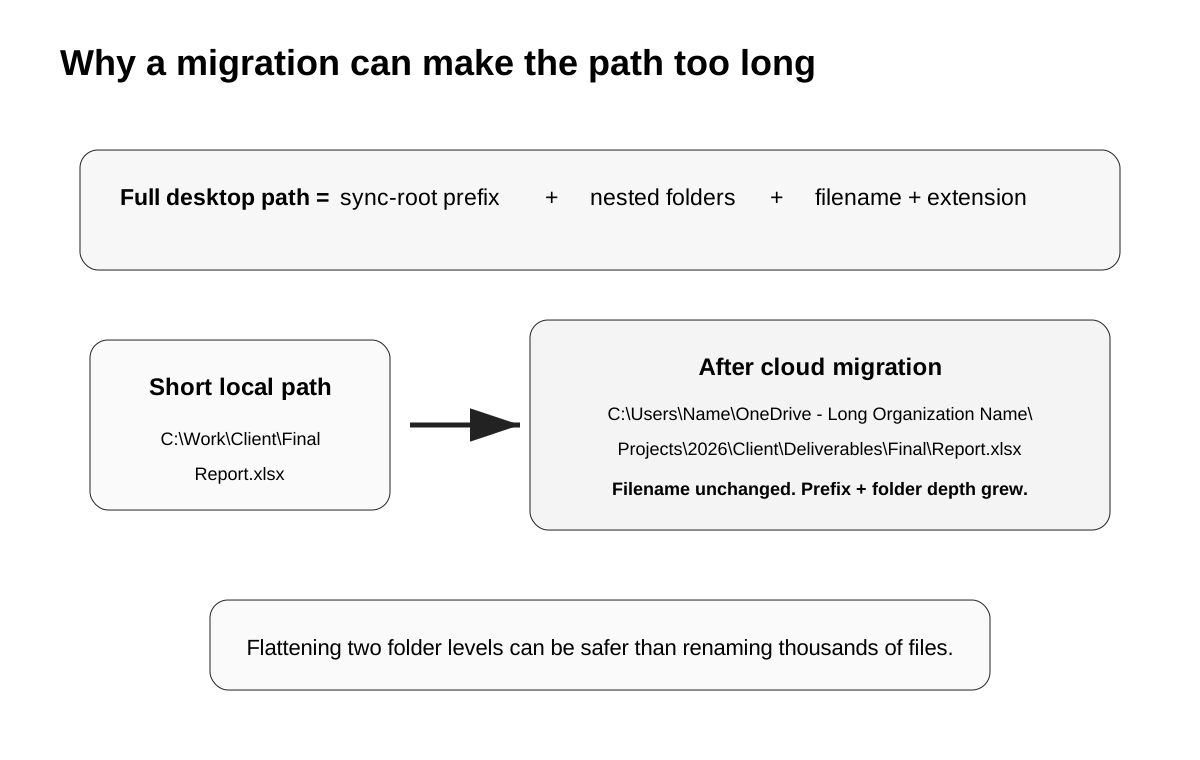
The visible filename may be perfectly ordinary while the full path grows because the sync root changes.
For example:
C:\Work\Client\Final\Report.xlsx
may become:
C:\Users\Name\OneDrive - Very Long Organization Name\Projects\2026\Client\Deliverables\Final\Report.xlsx
The file itself did not become longer. The prefix did.
This is especially common when moving:
- from a local drive into OneDrive/SharePoint;
- from a short Dropbox root into a managed team namespace;
- from a shallow archive into Desktop/Documents backup;
- from one computer with a short username to another with a longer profile path;
- from a browser-only structure to a desktop sync root.
So before bulk-renaming filenames, calculate how much of the problem comes from folder depth and sync-root prefix.
Microsoft's current path documentation explicitly points out that an organizational OneDrive root such as OneDrive - Contoso consumes part of the available local path length.
The cheapest fix may be to flatten two folder levels rather than rename thousands of files.
What not to do
Do not reset or reinstall the sync client for one invalid filename
A reinstall does not make Windows accept : in a filename or shorten a 300-character path.
If one file fails while thousands sync normally, investigate that object first.
Do not disconnect Google Drive before checking Lost and found
Google explicitly warns that Lost and found content can be lost when the account is disconnected.
Do not mass-rename project trees without checking application references
Apple warns that third-party apps may not automatically follow renamed paths. The same operational risk applies to many project files, links, scripts and catalogs regardless of provider.
Do not assume a browser-successful rename proves desktop compatibility
The web namespace and local filesystem can have different constraints.
Do not create two files that differ only by capitalization and assume every endpoint will treat them safely as distinct
If both objects matter, give them unambiguously different names.
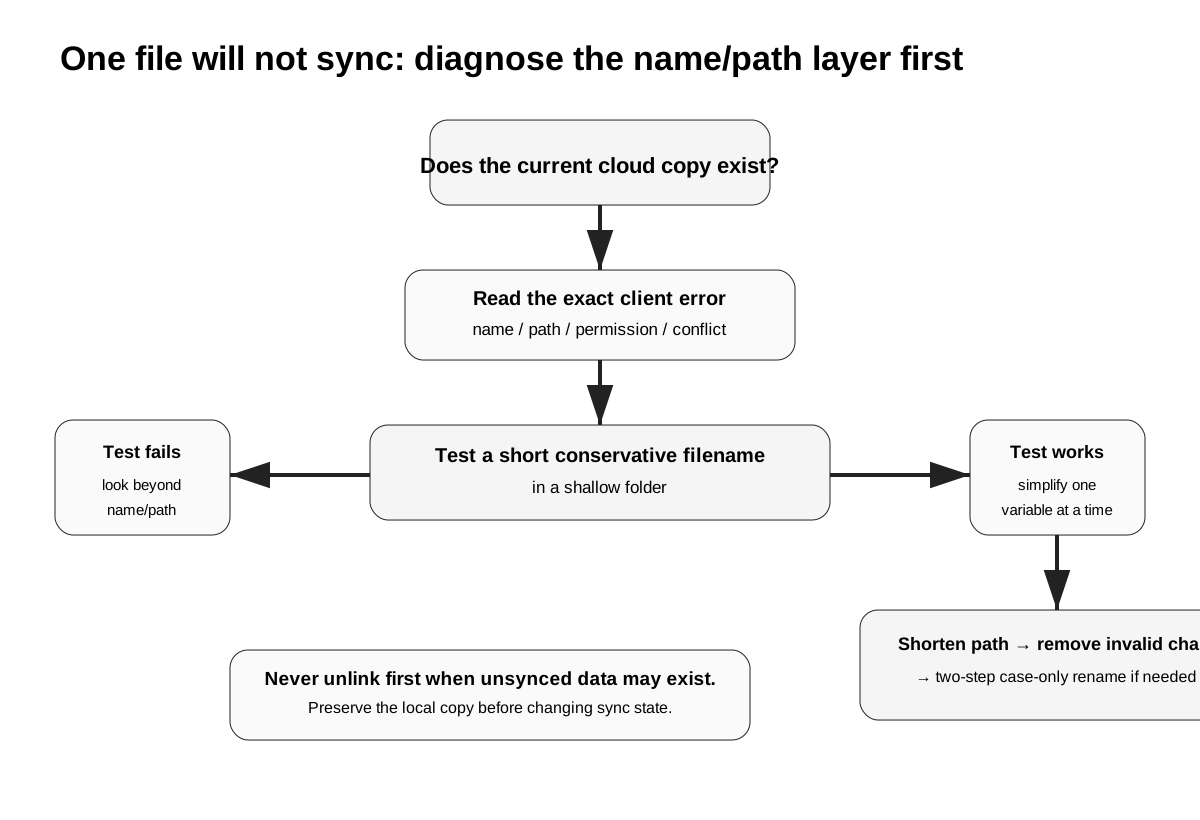
A safe diagnostic sequence for one file that refuses to sync cross-platform
Use this order:
- Preserve the current file first. If the local file may contain unsynced edits, copy it to a safe local folder outside the sync root before experimentation.
- Verify the cloud copy. Check whether the current expected version exists online.
- Record the exact full path. Include every parent folder, not only the filename.
- Read the client's error. Invalid name, path too long, permission denied and conflict are different incidents.
- Create a controlled test copy. Give it a short ASCII filename such as
sync-test.txtin a shallow folder. - If the test works, simplify the original path one variable at a time. Shorten path depth first, then remove special characters if needed.
- For case-only rename problems, use an intermediate clearly different name.
- Wait for sync confirmation after each change.
- Open the final file in the application that actually matters. A synced file that your application cannot address is not a completed fix.
Success means all three are true:
- the intended object exists in the cloud;
- the target desktop client materializes it under a stable path;
- the downstream application can open/save it without recreating another conflict.
Big 5 comparison: what is actually documented
| Provider | Current useful documented boundary | Practical takeaway |
|---|---|---|
| Dropbox | Recommends paths under 260 characters; / and \ disallowed; Windows compatibility handling for several special characters | Flexible filenames can help representation, but cross-platform portability still needs conservative naming |
| Google Drive | Official desktop docs emphasize local permissions, filesystem support, Stream/Mirror state and explicit sync errors; no equivalent simple universal forbidden-character table in current public help | Diagnose the actual client error and avoid importing another provider's rules as “Google rules” |
| iCloud Drive | iCloud for Windows 10.8+ can isolate overlong-path failures; Apple recommends shortening affected paths below 256 characters | A Mac-visible object can still fail on Windows because the local path is too long |
| OneDrive | Invalid-character set is explicit; cloud and desktop path limits differ; local Office/File Explorer limits can be stricter | A file accepted online can still fail to open or materialize cleanly on Windows desktop |
| pCloud | Sync/Backup troubleshooting explicitly flags invalid/too-long names and Windows-invalid characters | Error visibility is useful, but Windows naming constraints still apply to synced folders |
The most important conclusion is not which provider has the shortest blacklist.
It is this:
Cross-platform reliability comes from naming to the strictest endpoint you need, not the most permissive endpoint you happen to be using today.
When switching cloud providers does — and does not — solve the problem
If the problem is a single illegal Windows character or a path that is too long, switching providers is usually overkill. Rename the item or flatten the folder tree.
If the deeper problem is architectural — for example, you maintain a multi-terabyte archive where only 5% of folders ever need to become local on Windows — then a storage model that separates cloud-first archive access from explicit local Sync can reduce how much of the library must continuously satisfy the strictest desktop filesystem.
pCloud is one service worth comparing for that architecture because it separates pCloud Drive from Sync. But that does not mean pCloud makes invalid Windows filenames valid.
Compare whether a virtual-drive archive plus selective Sync is a better storage model.
If only a small working set genuinely needs full local synchronization, check pCloud's current personal plans after you confirm that your issue is architectural rather than one filename that simply needs to be renamed.
Check whether the storage model fits → Affiliate link · Switching providers does not remove Windows/macOS filename and path constraints. Verify current platform behavior before migrating.Related technical reading
The following links are restricted to URLs already confirmed as existing CloudScope pages, so this draft does not create index-time 404 dependencies:
- How pCloud Drive Cache Actually Works — useful when the file can materialize but local cache/storage is the actual problem.
- Cloud Backup vs Cloud Storage — use this before deleting or restructuring the only recoverable copy during a migration.
- Cloud Storage vs External Hard Drive — useful when a huge archive is becoming too difficult to make portable across local filesystems.
- Google Drive Alternatives — only relevant if the issue is broader than one incompatible path.
- Google Drive Storage Full — another example of diagnosing the actual failure layer before changing files.
Reverse internal link suggestions for the 50-draft publish pass
Do not add these reverse links until the target URL is wired and verified in the same deployment:
- From the broad Dropbox sync troubleshooting page, link to this page only in the filename/path branch.
- From the pCloud troubleshooting cluster, link here where invalid/too-long filenames are discussed.
- From any future cross-platform migration guide, link here before telling readers to bulk-rename or reorganize libraries.
- From a future case-sensitivity article, use this page as the broader filename/path parent rather than creating another overlapping general restrictions URL.
This prevents two SEO problems at once: no pre-publication 404 internal links, and no duplicate “filename restrictions” page competing for the same intent.
Image metadata
1. Cross-platform filename/path hero
- Filename:
cloud-sync-filename-path-cross-platform-hero.svg - ALT:
Cross-platform cloud sync diagram showing a filename accepted in one environment failing on another because of path and naming rules - Purpose: Explain cloud acceptance vs local materialization.
- Dimensions: 1200 × 760.
2. Path-length anatomy
- Filename:
cloud-sync-path-length-anatomy.svg - ALT:
Path-length diagram showing how sync-root prefix, nested folders and filename combine into one desktop path - Purpose: Show why migrations can create path failures without changing the filename.
- Dimensions: 1200 × 760.
3. Diagnostic tree
- Filename:
cloud-sync-filename-path-diagnostic-tree.svg - ALT:
Diagnostic decision tree for cloud files that sync on one computer but fail on another because of filename or path rules - Purpose: Guide safe diagnosis before reinstalling or unlinking.
- Dimensions: 1200 × 820.
Sources and verification
Product behavior changes. These primary sources were checked on 21 August 2026:
- Microsoft Support — Restrictions and limitations in OneDrive and SharePoint:
https://support.microsoft.com/en-us/onedrive/restrictions-and-limitations-in-onedrive-and-sharepoint - Microsoft Support — What are the file path length limits?:
https://support.microsoft.com/en-us/onedrive/what-are-file-path-length-limits - Microsoft Support — Why has my filename changed?:
https://support.microsoft.com/en-us/onedrive/why-has-my-filename-changed - Dropbox Help — Naming Dropbox files and folders:
https://help.dropbox.com/organize/file-names - Dropbox Help — Flexible file names:
https://help.dropbox.com/sync/flexible-filenames - Apple Support — If files in Windows won't sync to iCloud Drive because the path is too long:
https://support.apple.com/en-us/101649 - Google Drive Help — Fix problems in Drive for desktop:
https://support.google.com/drive/answer/2565956 - Google Drive Help — Drive for desktop system requirements/filesystems:
https://support.google.com/drive/answer/2375082 - pCloud Help — Troubleshooting Sync, Backup and Upload issues:
https://help.pcloud.com/article/troubleshooting-sync-back-up-and-upload-issues
Final verification checklist
Before publication, verify again that:
- the slug is registered exactly once;
- the canonical is self-referencing and returns the same final URL;
- no alternate slug is generated for this same intent;
- every internal link above returns
200directly, not301/302; - all three image paths exist before the article enters the sitemap;
- the article URL itself returns
200, not a redirect; - the sitemap contains only the final canonical URL;
- no draft-only or unpublished URL is exposed in visible internal links;
- no category or tag route duplicates this article body;
- the page is not wired into two content sources at the same time.
Those checks are part of the publish pass, not optional cleanup after Google discovers the URL.